










































New to KubeDB? Please start here.
Monitoring Neo4j with Builtin Prometheus
This tutorial will show you how to monitor a Neo4j database using builtin Prometheus scraper.
Before You Begin
At first, you need to have a Kubernetes cluster, and the
kubectlcommand-line tool must be configured to communicate with your cluster. If you do not already have a cluster, you can create one by using kind.Install KubeDB operator in your cluster following the steps here.
If you are not familiar with how to configure Prometheus to scrape metrics from various Kubernetes resources, please read the tutorial from here.
To learn how Prometheus monitoring works with KubeDB in general, please visit here.
To keep Prometheus resources isolated, we are going to use a separate namespace called
monitoringto deploy respective monitoring resources. We are going to deploy the database in thedemonamespace.$ kubectl create ns monitoring namespace/monitoring created $ kubectl create ns demo namespace/demo created
Note: YAML files used in this tutorial are stored in the docs/examples/neo4j folder in the GitHub repository kubedb/docs.
Deploy Neo4j with Monitoring Enabled
Let’s deploy a Neo4j database with monitoring enabled. Below is the Neo4j object that we are going to create.
apiVersion: kubedb.com/v1alpha2
kind: Neo4j
metadata:
  name: builtin-prom-neo4j
  namespace: demo
spec:
  version: "2025.12.1"
  replicas: 3
  deletionPolicy: WipeOut
  storage:
    storageClassName: "local-path"
    accessModes:
    - ReadWriteOnce
    resources:
      requests:
        storage: 2Gi
  monitor:
    agent: prometheus.io/builtin
Here,
spec.monitor.agent: prometheus.io/builtinspecifies that we are going to monitor this server using the builtin Prometheus scraper.
Let’s create the Neo4j CR:
$ kubectl apply -f https://github.com/kubedb/docs/raw/v2026.4.27/docs/examples/neo4j/monitoring/builtin-prom-neo4j.yaml
neo4j.kubedb.com/builtin-prom-neo4j created
Now, wait for the database to go into Ready state.
$ kubectl get neo4j -n demo builtin-prom-neo4j
NAME                   VERSION      STATUS   AGE
builtin-prom-neo4j     2025.12.1    Ready    2m
KubeDB will create a separate stats service with the name {Neo4j CR name}-stats for monitoring purposes.
$ kubectl get svc -n demo
NAME                       TYPE        CLUSTER-IP      EXTERNAL-IP   PORT(S)                                                 AGE
builtin-prom-neo4j         ClusterIP   10.43.110.23    <none>        6362/TCP,7687/TCP,7474/TCP                              4m12s
builtin-prom-neo4j-0       ClusterIP   None            <none>        6362/TCP,7687/TCP,7474/TCP,7688/TCP,7000/TCP,6000/TCP   4m12s
builtin-prom-neo4j-1       ClusterIP   None            <none>        6362/TCP,7687/TCP,7474/TCP,7688/TCP,7000/TCP,6000/TCP   4m12s
builtin-prom-neo4j-2       ClusterIP   None            <none>        6362/TCP,7687/TCP,7474/TCP,7688/TCP,7000/TCP,6000/TCP   4m12s
builtin-prom-neo4j-stats   ClusterIP   10.43.245.51    <none>        2004/TCP                                                4m12s
Here, builtin-prom-neo4j-stats service has been created for monitoring purposes. Let’s describe this stats service:
$ kubectl get svc -n demo builtin-prom-neo4j-stats -o yaml
apiVersion: v1
kind: Service
metadata:
  annotations:
    monitoring.appscode.com/agent: prometheus.io/builtin
    prometheus.io/path: /metrics
    prometheus.io/port: "2004"
    prometheus.io/scheme: http
    prometheus.io/scrape: "true"
  labels:
    app.kubernetes.io/component: database
    app.kubernetes.io/instance: builtin-prom-neo4j
    app.kubernetes.io/managed-by: kubedb.com
    app.kubernetes.io/name: neo4js.kubedb.com
    kubedb.com/role: stats
  name: builtin-prom-neo4j-stats
  namespace: demo
spec:
  clusterIP: 10.43.245.51
  ports:
  - name: metrics
    port: 2004
    protocol: TCP
    targetPort: metrics
  selector:
    app.kubernetes.io/instance: builtin-prom-neo4j
    app.kubernetes.io/managed-by: kubedb.com
    app.kubernetes.io/name: neo4js.kubedb.com
  type: ClusterIP
You can see that the service contains following annotations:
prometheus.io/path: /metrics
prometheus.io/port: "2004"
prometheus.io/scrape: "true"
The Prometheus server will discover the service endpoint using these specifications and will scrape metrics from the exporter.
Configure Prometheus Server
Now, we have to configure a Prometheus scraping job to scrape the metrics using this service. We are going to configure a scraping job similar to this kubernetes-service-endpoints job that scrapes metrics from endpoints of a service.
Let’s configure a Prometheus scraping job to collect metrics from this service:
- job_name: 'kubedb-databases'
  honor_labels: true
  scheme: http
  kubernetes_sd_configs:
  - role: endpoints
  # by default Prometheus server select all Kubernetes services as possible target.
  # relabel_config is used to filter only desired endpoints
  relabel_configs:
  # keep only those services that has "prometheus.io/scrape","prometheus.io/path" and "prometheus.io/port" annotations
  - source_labels: [__meta_kubernetes_service_annotation_prometheus_io_scrape, __meta_kubernetes_service_annotation_prometheus_io_port]
    separator: ;
    regex: true;(.*)
    action: keep
  # currently KubeDB supported databases uses only "http" scheme to export metrics. so, drop any service that uses "https" scheme.
  - source_labels: [__meta_kubernetes_service_annotation_prometheus_io_scheme]
    action: drop
    regex: https
  # only keep the stats services created by KubeDB for monitoring purpose which has "-stats" suffix
  - source_labels: [__meta_kubernetes_service_name]
    separator: ;
    regex: (.*-stats)
    action: keep
  # service created by KubeDB will have "app.kubernetes.io/name" and "app.kubernetes.io/instance" labels. keep only those services that have these labels.
  - source_labels: [__meta_kubernetes_service_label_app_kubernetes_io_name]
    separator: ;
    regex: (.*)
    action: keep
  # read the metric path from "prometheus.io/path: <path>" annotation
  - source_labels: [__meta_kubernetes_service_annotation_prometheus_io_path]
    action: replace
    target_label: __metrics_path__
    regex: (.+)
  # read the port from "prometheus.io/port: <port>" annotation and update scraping address accordingly
  - source_labels: [__address__, __meta_kubernetes_service_annotation_prometheus_io_port]
    action: replace
    target_label: __address__
    regex: ([^:]+)(?::\d+)?;(\d+)
    replacement: $1:$2
  # add service namespace as label to the scraped metrics
  - source_labels: [__meta_kubernetes_namespace]
    separator: ;
    regex: (.*)
    target_label: namespace
    replacement: $1
    action: replace
  # add service name as a label to the scraped metrics
  - source_labels: [__meta_kubernetes_service_name]
    separator: ;
    regex: (.*)
    target_label: service
    replacement: $1
    action: replace
  # add stats service's labels to the scraped metrics
  - action: labelmap
    regex: __meta_kubernetes_service_label_(.+)
Configure Existing Prometheus Server
If you already have a Prometheus server running, you have to add the above scraping job in the ConfigMap used to configure the Prometheus server. Then, you have to restart it for the updated configuration to take effect.
If you don’t use a persistent volume for Prometheus storage, you will lose your previously scraped data on restart.
Deploy New Prometheus Server
If you don’t have any existing Prometheus server running, you have to deploy one. In this section, we are going to deploy a Prometheus server in the monitoring namespace to collect metrics using this stats service.
Create ConfigMap:
At first, create a ConfigMap with the scraping configuration. Below is the YAML of the ConfigMap that we are going to create:
apiVersion: v1
kind: ConfigMap
metadata:
  name: prometheus-config
  labels:
    app: prometheus-demo
  namespace: monitoring
data:
  prometheus.yml: |
    global:
      scrape_interval: 5s
      evaluation_interval: 5s
    scrape_configs:
    - job_name: 'kubedb-databases'
      honor_labels: true
      scheme: http
      kubernetes_sd_configs:
      - role: endpoints
      relabel_configs:
      - source_labels: [__meta_kubernetes_service_annotation_prometheus_io_scrape, __meta_kubernetes_service_annotation_prometheus_io_port]
        separator: ;
        regex: true;(.*)
        action: keep
      - source_labels: [__meta_kubernetes_service_annotation_prometheus_io_scheme]
        action: drop
        regex: https
      - source_labels: [__meta_kubernetes_service_name]
        separator: ;
        regex: (.*-stats)
        action: keep
      - source_labels: [__meta_kubernetes_service_label_app_kubernetes_io_name]
        separator: ;
        regex: (.*)
        action: keep
      - source_labels: [__meta_kubernetes_service_annotation_prometheus_io_path]
        action: replace
        target_label: __metrics_path__
        regex: (.+)
      - source_labels: [__address__, __meta_kubernetes_service_annotation_prometheus_io_port]
        action: replace
        target_label: __address__
        regex: ([^:]+)(?::\d+)?;(\d+)
        replacement: $1:$2
      - source_labels: [__meta_kubernetes_namespace]
        separator: ;
        regex: (.*)
        target_label: namespace
        replacement: $1
        action: replace
      - source_labels: [__meta_kubernetes_service_name]
        separator: ;
        regex: (.*)
        target_label: service
        replacement: $1
        action: replace
      - action: labelmap
        regex: __meta_kubernetes_service_label_(.+)
Let’s create the ConfigMap:
$ kubectl apply -f https://github.com/kubedb/docs/raw/v2026.4.27/docs/examples/monitoring/builtin-prometheus/prom-config.yaml
configmap/prometheus-config created
Create RBAC:
If you are using an RBAC enabled cluster, you have to give necessary RBAC permissions for Prometheus. Let’s create necessary RBAC resources for Prometheus:
$ kubectl apply -f https://github.com/appscode/third-party-tools/raw/master/monitoring/prometheus/builtin/artifacts/rbac.yaml
clusterrole.rbac.authorization.k8s.io/prometheus created
serviceaccount/prometheus created
clusterrolebinding.rbac.authorization.k8s.io/prometheus created
YAML for the RBAC resources created above can be found here.
Deploy Prometheus:
Now, we are ready to deploy the Prometheus server. Let’s deploy it using the following deployment:
$ kubectl apply -f https://github.com/appscode/third-party-tools/raw/master/monitoring/prometheus/builtin/artifacts/deployment.yaml
deployment.apps/prometheus created
Verify Monitoring Metrics
The Prometheus server is listening on port 9090. We are going to use port forwarding to access the Prometheus dashboard.
At first, let’s check if the Prometheus pod is in Running state:
$ kubectl get pod -n monitoring -l=app=prometheus
NAME                          READY   STATUS    RESTARTS   AGE
prometheus-8597f664fd-2sl48   1/1     Running   0          6m58s
Now, run the following command in a separate terminal to forward port 9090:
$ kubectl port-forward -n monitoring prometheus-8597f664fd-2sl48 9090
Forwarding from 127.0.0.1:9090 -> 9090
Forwarding from [::1]:9090 -> 9090
Now, we can access the dashboard at localhost:9090. Open http://localhost:9090 in your browser. Navigate to Status → Targets and you should see the endpoint of builtin-prom-neo4j-stats service as one of the active targets.
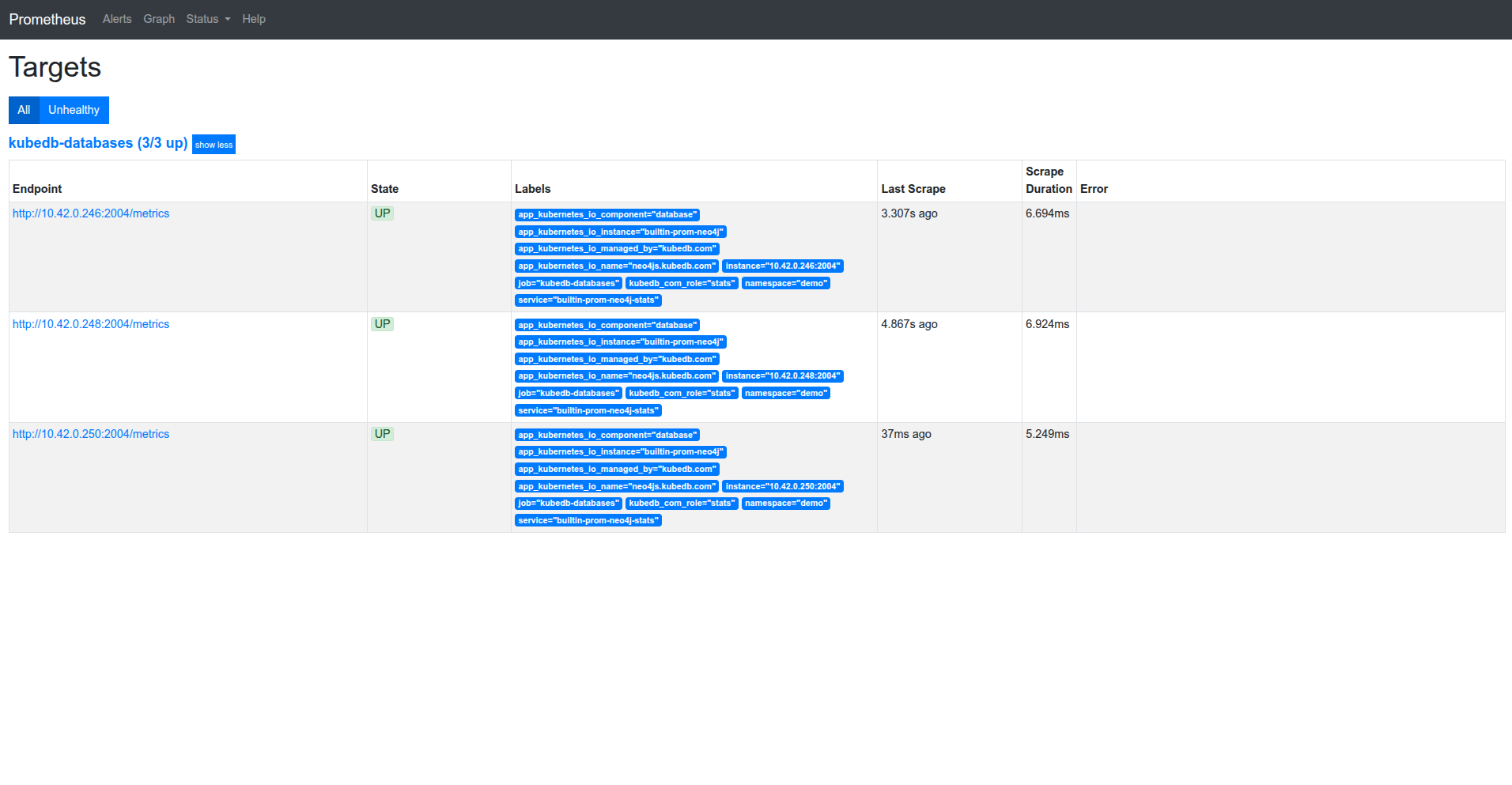
The labels marked in the image confirm that the metrics are coming from the Neo4j database builtin-prom-neo4j through the stats service builtin-prom-neo4j-stats.
Now, you can view the collected metrics and create graphs from the Prometheus homepage. You can also use this Prometheus server as a data source for Grafana and create beautiful dashboards with collected metrics.
Cleaning up
To clean up the Kubernetes resources created by this tutorial, run:
$ kubectl patch -n demo neo4j/builtin-prom-neo4j -p '{"spec":{"deletionPolicy":"WipeOut"}}' --type="merge"
$ kubectl delete -n demo neo4j/builtin-prom-neo4j

$ kubectl delete -n monitoring deployment.apps/prometheus

$ kubectl delete -n monitoring clusterrole.rbac.authorization.k8s.io/prometheus
$ kubectl delete -n monitoring serviceaccount/prometheus
$ kubectl delete -n monitoring clusterrolebinding.rbac.authorization.k8s.io/prometheus

$ kubectl delete ns demo
$ kubectl delete ns monitoring
Next Steps
- Learn about backup and restore Neo4j databases using Stash.
- Monitor your Neo4j database with KubeDB using
Prometheus operator. - Use private Docker registry to deploy Neo4j with KubeDB.
- Want to hack on KubeDB? Check our contribution guidelines.